
Getting Started
This section is for downloading and installing programs and drivers so the equipment can properly record cosmic rays. It is strongly recommended to follow the headers in order.Check out the Software Guide page for more information on properly setting up and using the software.
- LabView and CROP DAQ Software for version 5.0
- LabView and CROP DAQ Software for version 4.0
- DAQ Card Driver
- TeraTerm Software Installation
LabView and CROP DAQ Software for version 5.0 (New DAQ Card)
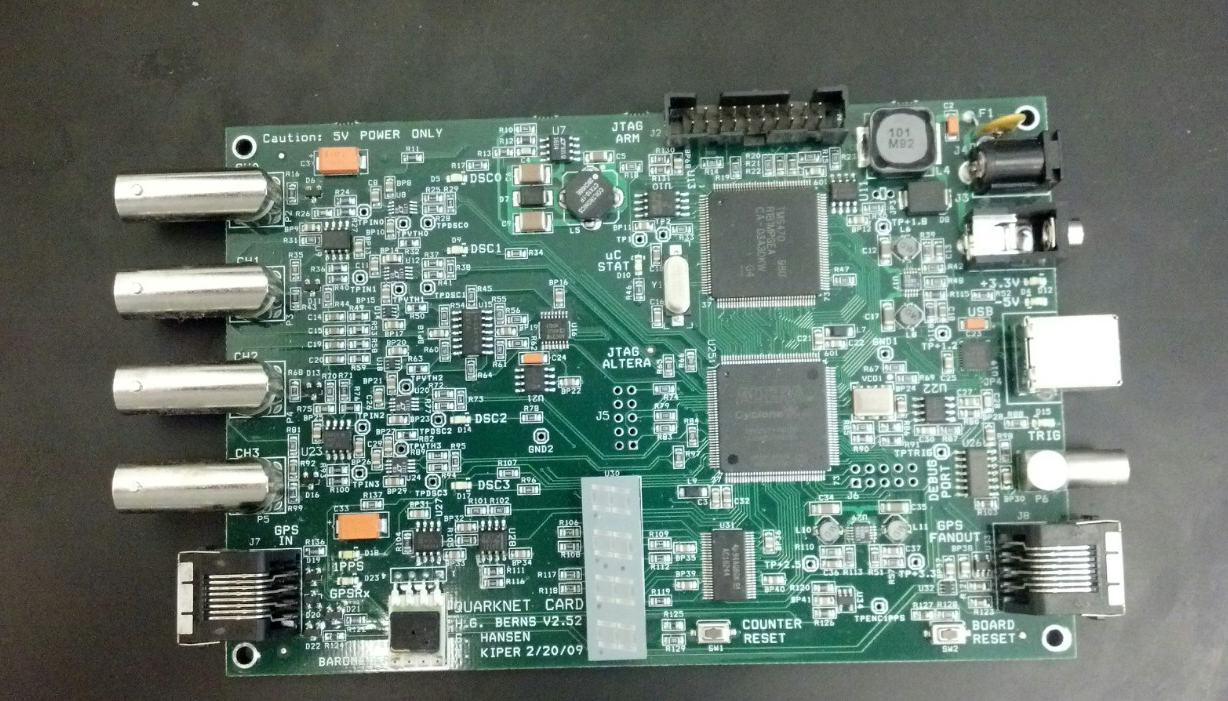
- Download CROP's Software: CROP Installer Software 5.2.1.zip. CROP software version 5.2.1 or higher has the LabView's Run-Time Engine prepackaged.
- Locate the Setup.exe and follow the on screen instructions.
- Find your school's ID number.
LabView and CROP DAQ Software for version 4.0 (Old DAQ Card)
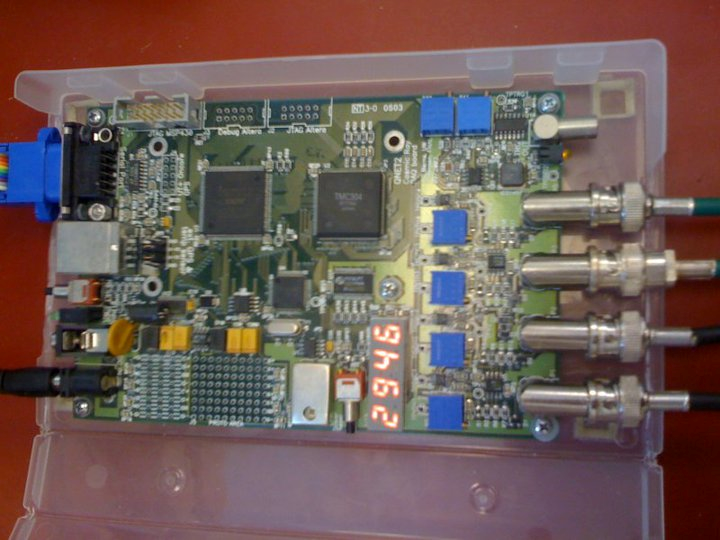
- Download LabView's Run-Time Engine(version 8.5 or higher is required): Click on LabVIEW85RuntimeEngineFull.exe to download the Run-Time Engine from our server.
- Double-click on the file and follow the on screen instructions.
- Download CROP's Software: CROP Installer Software 4.0.1.zip
- Locate the Setup.exe and follow the on screen instructions.
- Find your school's ID number.
DAQ Card Driver
If using the new DAQ card, follow these steps to correctly get and install the driver. If using the old DAQ card, skip these steps due to the driver being prepackaged in the 4.0 software.- Go to: https://www.silabs.com/products/mcu/Pages/USBtoUARTBridgeVCPDrivers.aspx and select VCP Driver Kit for Windows (currently the DAQ software only works with XP to Windows 7). Another possible option is clicking on CP210x_VCP_Windows.zip to download the zip file from our server.
- Unzip the folder named CP210x VCP Windows and then click on CP210xVCPInstaller_x##.exe to install the driver. Depending on your architecture for your PC, click on _x86 for 32-bit and _x64 for 64-bit.
TeraTerm Software Installation
- Download TeraTerm, by going to http://ttssh2.sourceforge.jp/index.html.en or click on TeraTerm-4.78.exe to download TeraTerm from our server.
- Double-click on the file and follow the on screen instructions.
- Now you're all set to go!