University of Nebraska-Lincoln Physics & Astronomy
Explore
  • Home
  • About ➤
    • Project Statement
    • Staff
    • Participating Schools
    • Cosmic Ray FAQ
    • Workshops
  • For Schools ➤
    • Upload Data
    • Schools Data
    • Checklist
    • Software Guide ➤
      • Getting Started
      • Setup and Configure
      • Troubleshooting
      • Explanation of Scans
    • Weather Database
    • Changing COM Port
    • Training and Video Module ➤
      • Polishing a Scintillaor
      • Making a Detector
    • GPS Guide
    • Oscilloscope Guide
  • For Staff ➤
    • Detector Scans
    • PMT Testing
    • Power Supplies
    • Other Guides
  • Links
  • Contact Us ➤
    • E-mail Us ➤
      • cropsolutions@unl.edu
    • Setup Adobe Connect Meeting ➤
      • Choose Date and Time
      • Connect to the Meeting
    • Call us @ (402) 472-6471
© 2015 Physics & Astronomy
University of Nebraska-Lincoln
Last update: 07/03/2015
Contact webmaster

Troubleshooting

This section will discuss possible errors or problems that might come up and how to fix them. These can occur during certain scans or random bugs. A print friendly version of this page is available here Troubleshooting.pdf.

  • CROP Software Freezes
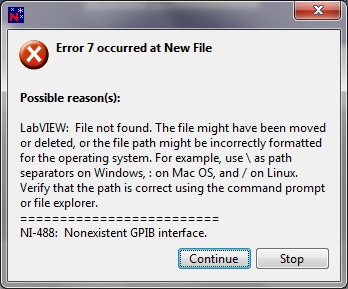
  • Error 7 (File Not Found)
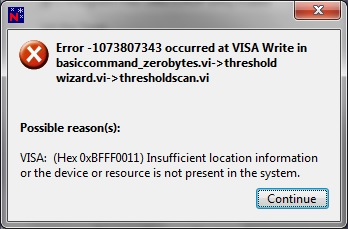
  • Error -1073807343 (Device Not Present)
CROP Software Freezes

In version 5.0 there is an “Abort” button at the bottom left hand side of the program. This a kill button if anything happens to freeze. If more problems occur, such as it won’t unfreeze or the program won’t close at all, use “control alt delete”, click “start task manager”, select the CROP program under the application tab and then click “end process”.
Top

Error 7 (File Not Found)

This error occurs when starting an array scan or experiment scan. The error means that the correct path to store the data from the scan is not present. To fix this problem, create a folder named Crop Data in your C: drive. This will be where all the array and experiment scans data will be stored.
Top

Error -1073807343 (Device Not Present)

This error comes up when the PC, DAQ card, or software card was improperly configured once you click on a scan. The program is looking for the DAQ card but due to the improper configuration, the software errors out. Go back to section Setup and Configure to make sure nothing was missed. Even if all steps are followed in the Configuration section there is a chance that the program might still error out due to a bug in the Configuration menu. This is represented by the image above or the software freezing in the first few steps of starting a scan. This bug is found to occur more on Window 7 PCs than Windows XP.

To fix this issue, we are going to manually set the DAQ card to COM1, as this is usually the default option in the configuration menu for the DAQ software. Depending on which version (XP to Windows 7) of your operating system, a few steps will be different.

  1. Click on the “Start” (for Windows 7 it is a windows icon), this is usually located on the bottom left hand side of the screen.
  2. Click on “Control Panel”.
  3. The next few steps are where XP and Windows 7 are different. For Windows 7, click on “Hardware and Sound” and then “Devices and Printers”. The DAQ card should be in the unspecified category named Silicon Labs CP210X USB to UART Bridge. It will also display the current COM#. For Windows XP, click on “System” and click on the “Hardware” tab. Click on “Device Manager” and locate and click the category “Ports”. Once clicked, the DAQ card will be displayed with the same name above and the current COM#.
  4. Right click on the name of the card and select “Properties”. Next click on the “Hardware” tab and select “Properties” at the bottom of the window.
  5. For Windows 7, click on the “Change settings” at the bottom of the “General” tab. Click on “Port Settings” and then “Advanced”. Once this is selected, Find “Com Port Number” and selected COM1. For Windows XP, do all the previous steps above other than “Change settings”. If COM1 is in use, find the location of the device that is using COM1 and change it to another COM by a similar method above.
  6. When the COM# is turned to 1, click on Ok until all the windows are closed.

Top